Guide
How to prompt AI for HTML slides that are easy to edit later
Updated · takushio2525 · 日本語
Ask an AI to build your slides in HTML and you get a finished-looking deck, design included, in one go. But how you ask makes a big difference to what happens next: whether the text and images are easy to fix later, and whether the deck prints cleanly to PDF.
This guide lists six requirements worth adding to your prompt, with the reason behind each one, and ends with a prompt you can copy and paste. None of it is specific to one AI; it works the same with Claude, ChatGPT or any other assistant.
1. Ask for a single HTML file
When the CSS and images come as separate files, it is easy to miss one while copying them out of the chat, and opening only the HTML leaves the design half-broken. Sharing the deck by email or chat then means sending a whole folder. A single file looks the same wherever it is opened.
Add “put the CSS in a <style> tag and deliver one HTML file” to your request. Fonts or libraries loaded from a CDN still work in a single file, but the look changes when you are offline.
2. Make the slide boundaries obvious
When the HTML structure makes it clear where each slide starts and ends, an editor can reorder and duplicate slides, and printing can put each slide on its own page. When it is ambiguous, the whole deck is treated as one long page.
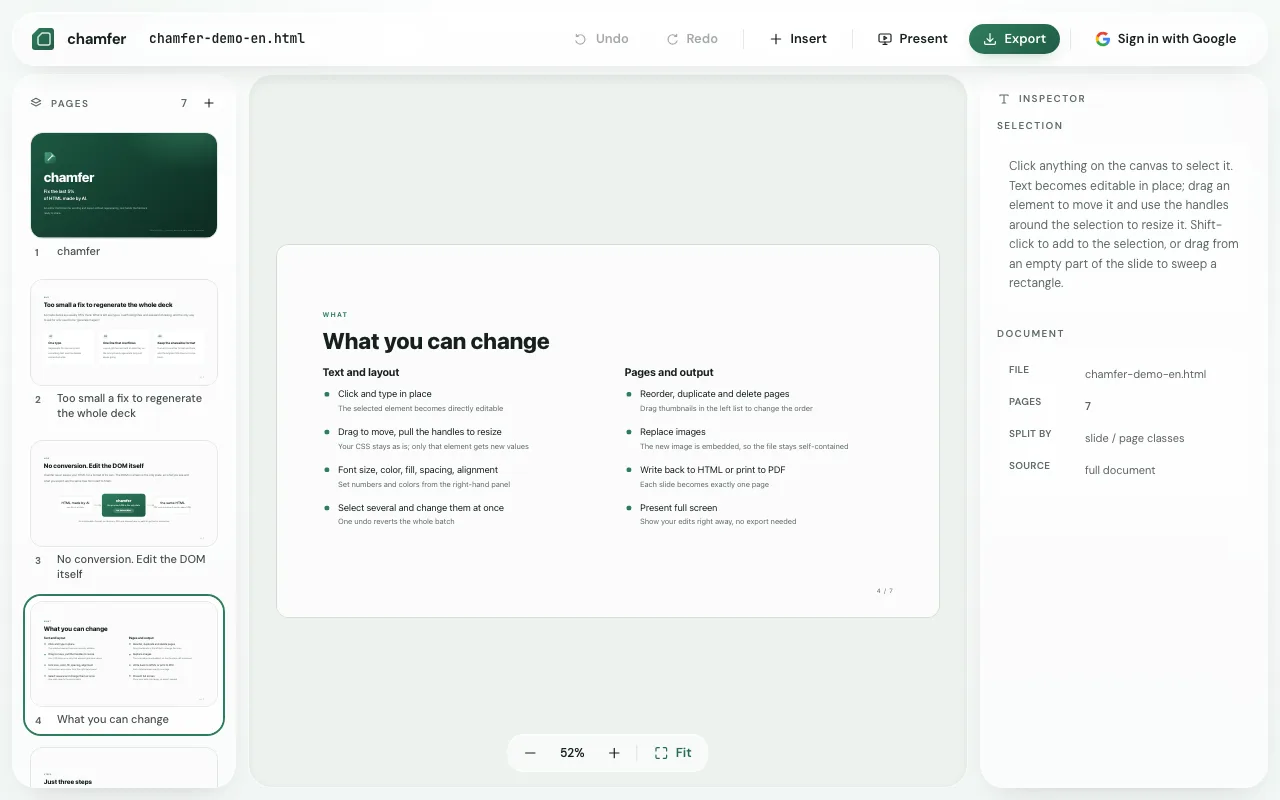
The clearest form is one <section class="slide"> per slide, placed in order directly inside body. chamfer looks for clues such as reveal.js section elements, a run of elements with a slide or page class, section or article elements directly inside body, and print page-break rules. The clue it used is shown in the inspector on the right when nothing is selected.
To give slides names, ask for an attribute such as data-label="03 Summary"; chamfer shows that name in its page list.
3. Fix the slide size
Slides that stretch to fit the screen (100vw, 100vh) are handy in a browser, but in a PDF the page size becomes undefined and a slide can split across two pages. Line breaks also move depending on the screen.
Ask for “every slide fixed at 1280px wide and 720px tall (16:9)” and the text wraps in the same place on every screen. chamfer reads that size to make the PDF pages match the slides, and scales the slides to fit the screen when presenting. It also copes with decks that have no size set, but a fixed size gives you the same look on screen, in the PDF and when presenting.
Add “keep all content inside the slide” as well. Text that overflows the slide ends up on the next page of the PDF.
4. Keep text as text, not images
If headings or the labels in a diagram are images, fixing a single character means recreating the image. As HTML text, you can click and retype it in chamfer, and it stays text in the PDF, so it can be selected and searched.
For the same reason, ask for markup that fits the content: <table> for tables, <ul> for bullet lists. Diagrams drawn with HTML and CSS or SVG, rather than as pictures, let you change their colors and sizes later.
5. Don’t lean on JavaScript for the effects
Tabs that switch on click, or slide navigation built in JavaScript, often do not display correctly in an editor or when printed. chamfer pauses the scripts in the HTML while you edit, so an unfamiliar file cannot run anything on its own (they are restored on export).
Visual touches written in CSS look the same wherever the file is opened. Slide navigation can be added afterwards with chamfer’s presentation mode or by exporting it as a presentation. Build-in animations that reveal elements one by one (fade in, slide in from any side, zoom in) can also be added per element in chamfer, in the order you choose, and they play on each click in the exported HTML too.
6. Let the AI build the skeleton, then finish by hand
AI is good at changing content and structure; fine-tuning wording and positions is quicker by hand. The order least likely to break things is: have the AI build the structure, make content changes in the conversation, and finally polish text, positions, colors and images yourself.
If you want the AI to make a big change after you have edited by hand, do not continue the original conversation. Give it the file you edited and ask it to “change only X in this HTML and leave everything else as is”. The AI in the original chat does not know about your edits.
A prompt you can copy
Put together, the requirements look like this. Replace only the content part.
Create a presentation as HTML with the following content.

Requirements:
- Put all CSS in a <style> tag and deliver everything as one HTML file
- Make each slide its own <section class="slide">, placed in order directly inside <body>
- Fix every slide at 1280px wide and 720px tall, and keep all content inside it
- Write headings and body text as real HTML text, never as images
- Do not use JavaScript (no slide navigation needed)
- Draw diagrams with HTML and CSS or SVG, and leave out photos (I will add them later)

Content:
(What you want to say, how many slides, and who the audience is)
If you plan to print to PDF straight from the browser rather than through chamfer, add this line to the requirements:
- Add print CSS so it prints one slide per page: @page size, break-after, and margin: 0 on body and the slidesTo polish the result, see how to fix AI-generated HTML slides without regenerating them; to make a PDF, see how to turn HTML slides into a PDF with one slide per page.
If the deck already exists
Even decks made without these requirements usually open and can be fixed in chamfer. A deck with no detectable boundaries becomes a single page, and a deck with no fixed size is fitted to the PDF page. If it will not open well, the quickest route is often to give the file back to the AI and ask it to rewrite the deck following the requirements above.
- The CSS and images are separate files → open the whole folder
- The whole deck shows up as one page → ask again for “one section per slide”
- Slides split across two pages in the PDF → fix the slide size and the overflowing content